Introduction
I’ve been big fan of VSCode since the early days and been using it since half-a-decade. Used variety of different extensions, customization, custom-css-plugins and whatnot. Before start of 2024, I got stuck with VSCode extention called jumpy and there were many similar ones which lets you do hjkl vim navigation in VSCode without vim. I started using it and it just changed lot of my keyboard ergonomic. So, I don’t have to touch my mouse and just use ALT+j or ALT+k to get inside the curly braces and boost my focus.
One day it just hit me, I was like if one vim navigation is this much useful to me, what would happen if I used all of vim features. And that of the day, my coding journey changed forever. I installed vscode-vim and watched bunch of tutorials such as this and everyday was new vim trick for me.
Removing Clutter from VSCode

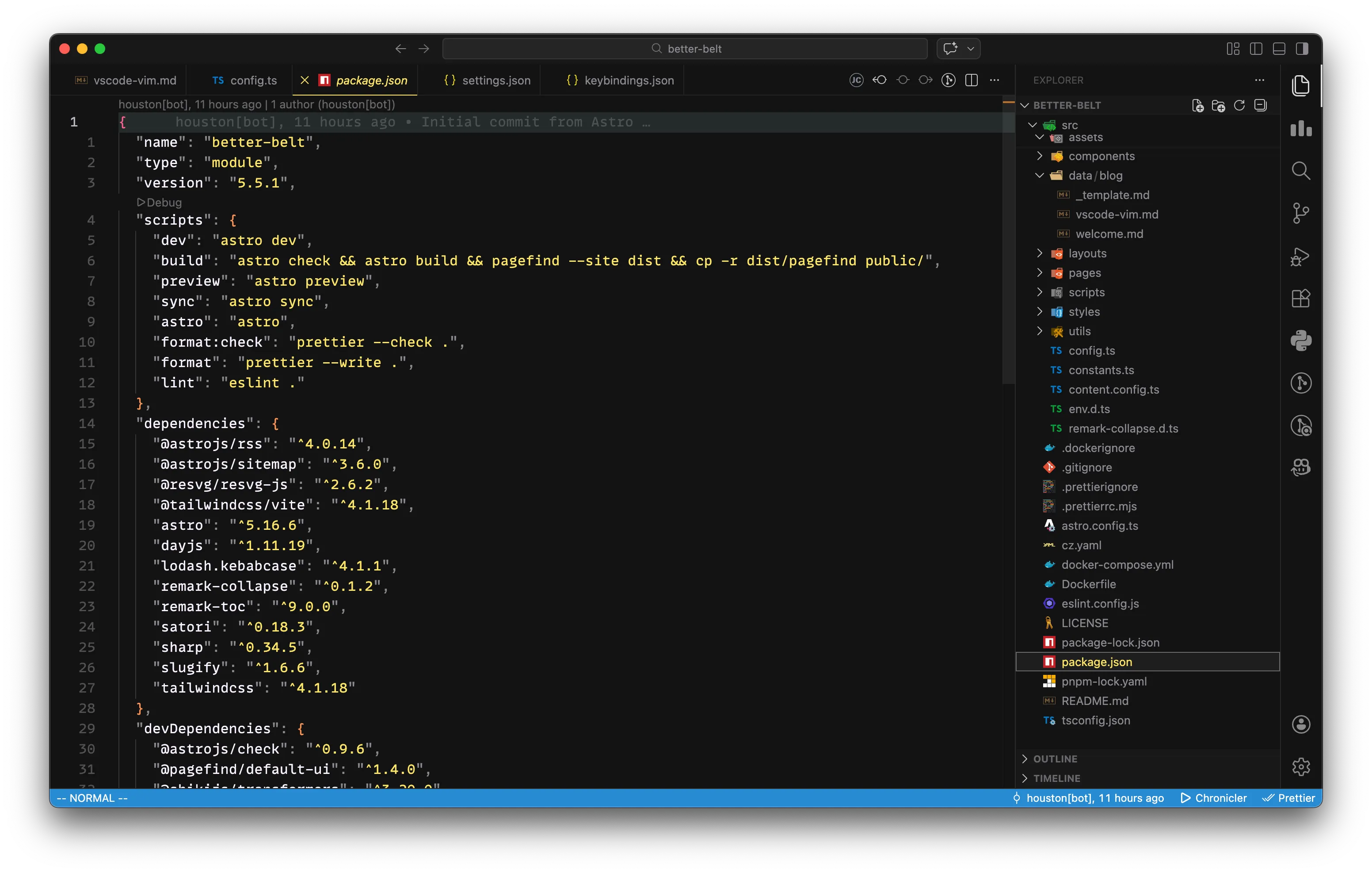
So, since I started using vim, started using keyboard only navigation for everything in VSCode, so I hide everything else which was not needed to me. Also, kept the file explore on right instead of default left, which is killer cool! This is how it looks now!
Custom Actions to Map between Vim & VSCode
To navigate the file tree, open and closing files, renaming them, I mapped few of the VScode actions to vim key bindings. Refer the following JSON -
    // FILE TREE
    {
        "command": "workbench.action.toggleSidebarVisibility",
        "key": "ctrl+e"
    },
    {
        "command": "workbench.files.action.focusFilesExplorer",
        "key": "ctrl+e",
        "when": "editorTextFocus"
    },
    {
        "key": "n",
        "command": "explorer.newFile",
        "when": "filesExplorerFocus && !inputFocus"
    },
    {
        "command": "renameFile",
        "key": "r",
        "when": "filesExplorerFocus && !inputFocus"
    },
    {
        "key": "shift+n",
        "command": "explorer.newFolder",
        "when": "explorerViewletFocus"
    },
    {
        "command": "deleteFile",
        "key": "d",
        "when": "filesExplorerFocus && !inputFocus"
    },
There are some more and you can find about them here.
Vim VSCode Customizations
Other than basics setup, I updated the color schemes for bottom nav.
"editor.lineNumbers": "relative",
"vim.statusBarColorControl": true,
"vim.statusBarColors.normal": "#268bd2", // Blue - calm, default mode
"vim.statusBarColors.insert": "#32CD32", // Green - for writing/inserting text
"vim.statusBarColors.visual": "#d33682", // Magenta - eye-catching for selection
"vim.statusBarColors.visualblock": "#b58900", // Yellow - distinct from visual
"vim.statusBarColors.visualline": "#cb4b16", // Orange - warm & noticeable
"vim.statusBarColors.replace": "#dc322f", // Red - warning tone for replace mode
"vim.statusBarColors.surroundinputmode": "#5C2D91", // Indigo
"vim.statusBarColors.commandlineinprogress": "#6A5ACD", // Slate Blue
"vim.statusBarColors.searchinprogressmode": "#FF8C00", // Bright Orange
"vim.statusBarColors.easymotionmode": "#3df320", // Bright Orange
Vim VSCode keybindings
I did some more customizations related to my own preference.
  "vim.easymotion": true,
  "vim.incsearch": true,
  "vim.useCtrlKeys": true,
  "vim.leader": "<Space>",
  "vim.hlsearch": true,
  "vim.highlightedyank.enable": true,
  "vim.highlightedyank.color": "#d6d4f0",
  "vim.highlightedyank.textColor": "#1E1E1E",
  "vim.highlightedyank.duration": 2200,
  "vim.showcmd": true,
Vim normalMode KeyBindings
I wanted to do some other simpler vscode actions such as quickFix but in Vim way so I just have to
map insert mode keybindings to those VSCode actions. For example, gw maps to editor.action.quickFix.
Other mappings looks like this -
    // NAVIGATION
    {
      "before": [
        "<C-n>"
      ],
      "commands": [
        ":nohl"
      ]
    },
    {
      "before": [
        "K"
      ],
      "commands": [
        "lineBreakInsert"
      ],
      "silent": true
    },
    {
      "before": [
        "g",
        "c",
        "c"
      ],
      "commands": [
        "editor.action.commentLine"
      ]
    },
    {
      "before": [
        "g",
        "R"
      ],
      "commands": [
        "editor.action.rename"
      ]
    },
    {
      "before": [
        "s"
      ],
      "after": [
        "<leader>",
        "<leader>",
        "2",
        "s"
      ]
    },
    {
      "before": [
        "g",
        "q"
      ],
      "commands": [
        "editor.action.formatDocument",
        "workbench.action.files.save"
      ]
    },
    {
      "before": [
        "g",
        "r"
      ],
      "commands": [
        "editor.action.refactor"
      ]
    },
    {
      "before": [
        "g",
        "w"
      ],
      "commands": [
        "editor.action.quickFix"
      ]
    },
    {
      "before": [
        "u"
      ],
      "after": [],
      "commands": [
        {
          "command": "undo",
          "args": []
        }
      ]
    },
    {
      "before": [
        "<C-r>"
      ],
      "after": [],
      "commands": [
        {
          "command": "redo",
          "args": []
        }
      ]
    },
    {
      "before": [
        "g",
        "b"
      ],
      "commands": [
        "workbench.action.openPreviousRecentlyUsedEditor"
      ]
    },
    {
      "before": [
        "g",
        "n"
      ],
      "commands": [
        "workbench.action.openNextRecentlyUsedEditor"
      ]
    },
This is more of my setup. Complete setup file can be found here, I was also trying something more with custom CSS shown similar in this video. I will create a separate blog article on my fav vim keybinds which are crazy super cool! Thanks for reading.
 Happy Coding!